Notes for Existing Users
eleFront 5 has replaced the way it does a few things. If you already use eleFront, read the following sections so you can update your workflows.
Pass-Through
Prior to eleFont version 5, attributes and Rhino properties (layers, name etc) were managed with "constructor" components such as Define Object Attributes and "deconstructor" components such as Deconstruct Attributes. They are now managed with a single component that merges both. This is based on Rhino's new "pass through" style of component, which takes the traditional approach of two components and merges them into one pass through component, which can both construct and deconstruct.
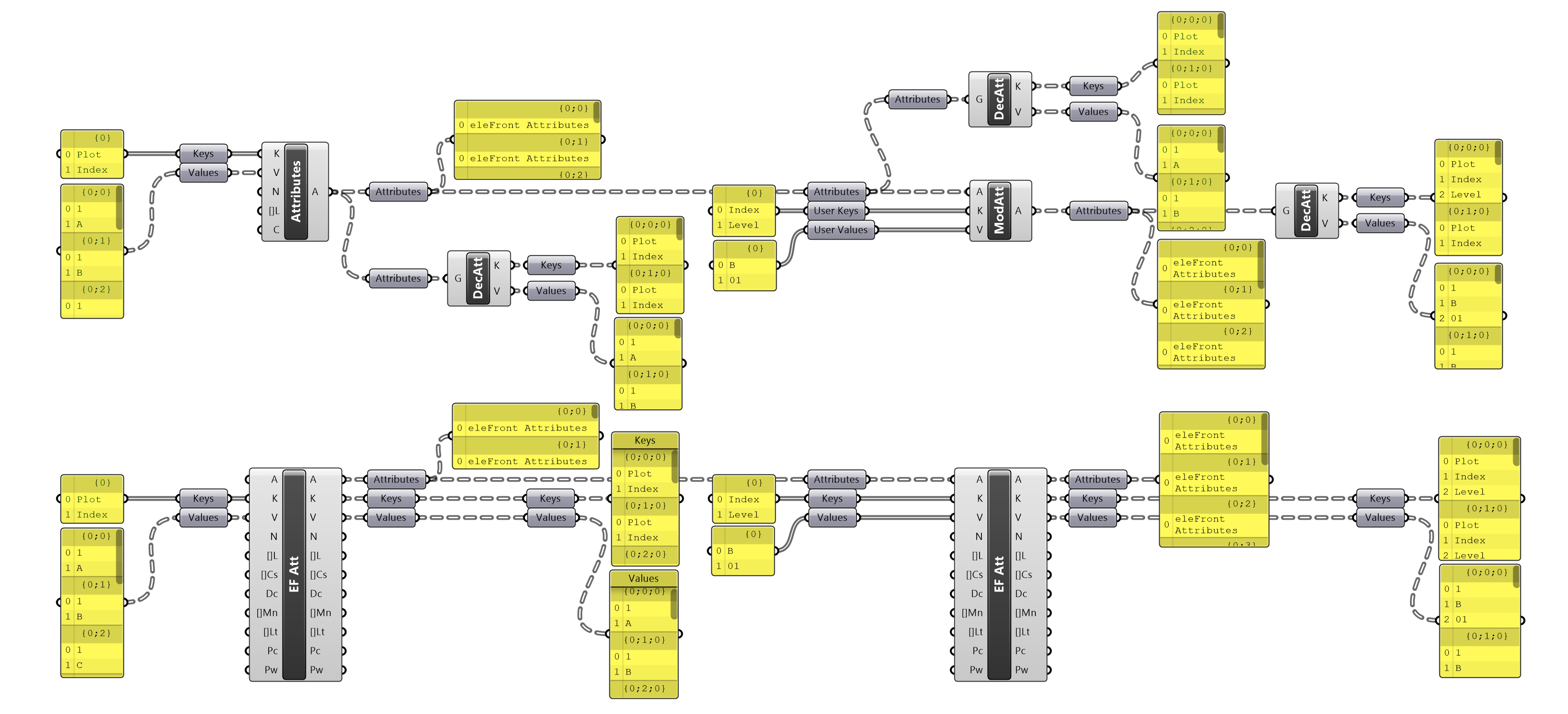
*Two parallel streams of the same operations, performed by "constructor/deconstructor" components in previous versions of eleFront (top stream) and by "pass through" components in the current version of eleFront (bottom stream)
As the new eleFront Attributes component combines so many operations, it's inevitable that oftentimes several of the input/output parameters won't be needed. To simplify and give clarity to how the component is being used, right-click the component and select "Hide unconnected parameters".
Below are examples of how the current attributes component can perfom the tasks of the previous ones.
 *The same two streams of operations as shown in the previous image, this time with the unconnected parameters of the current
 eleFront attributes component hidden.
Define Attributes
The Define Object Attributes component acted as a constructor. Taking inputs of Key, Value, Name, Layer and Colour and constructing a single attribute per branch.
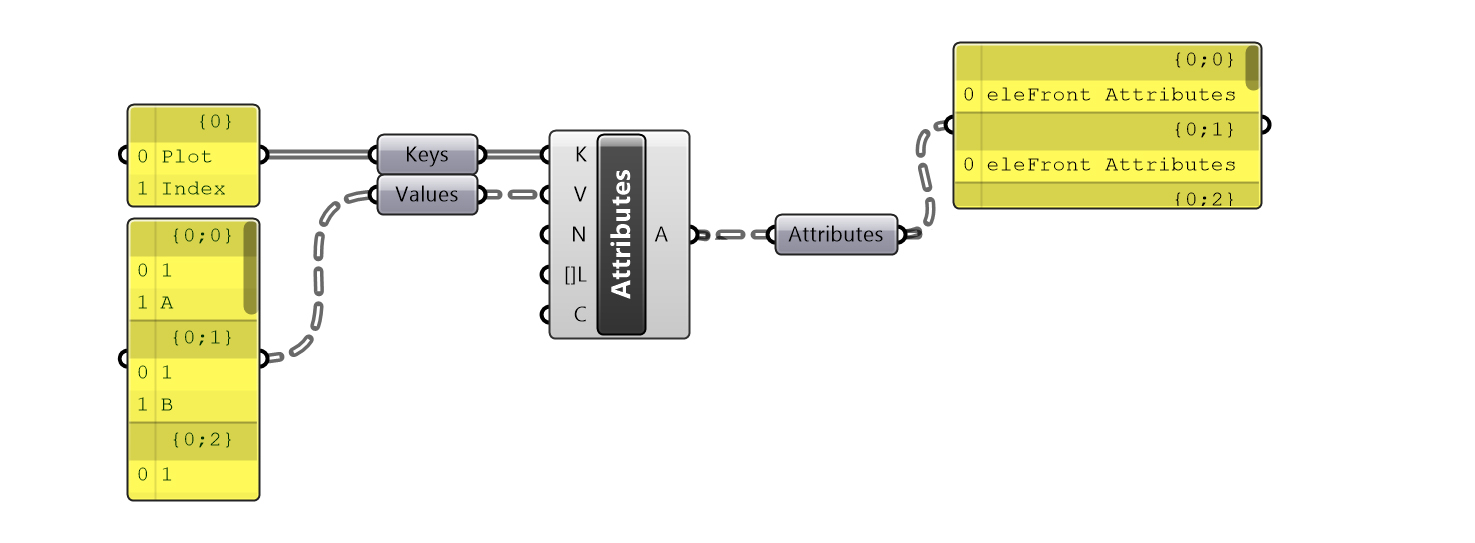 Defining attributes in previous versions of eleFront
The current eleFront Attributes component can perform the same task. Simply input the same data into the same parameters.
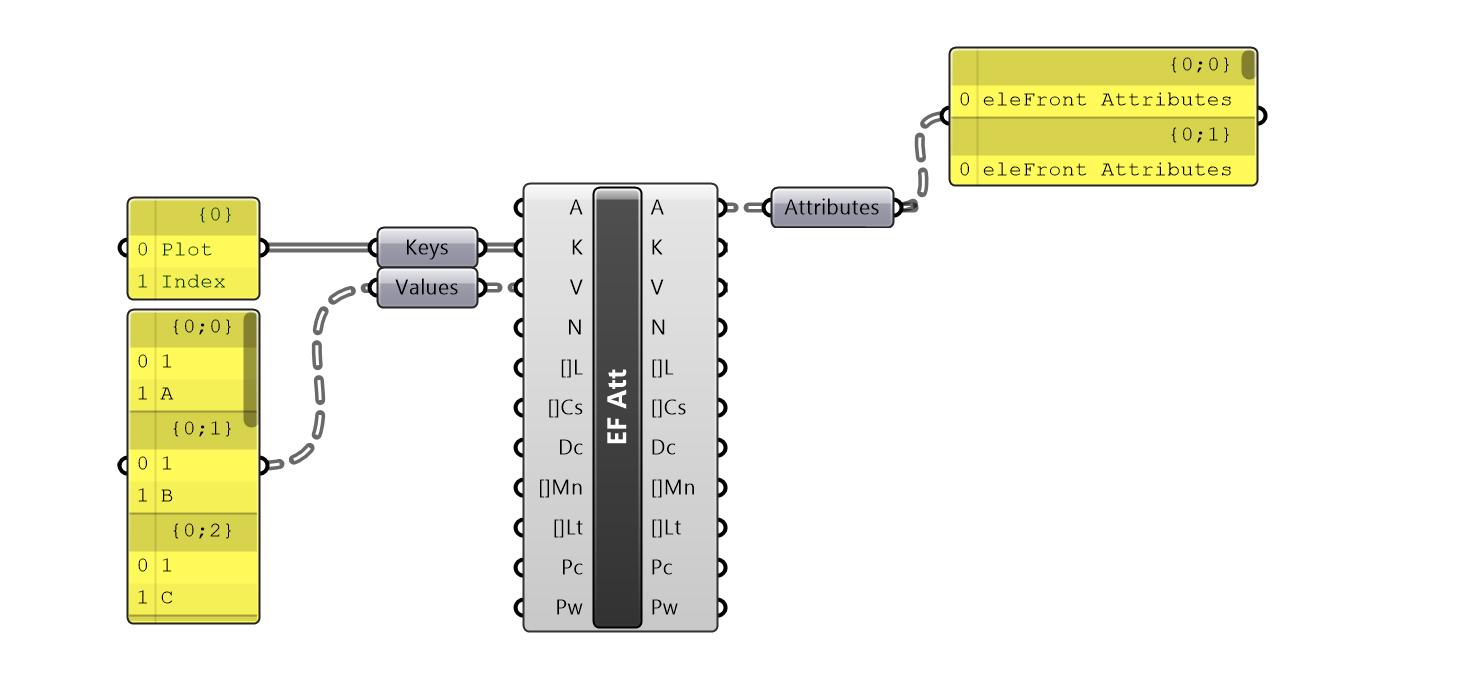 Defining attributes in the current version of eleFront
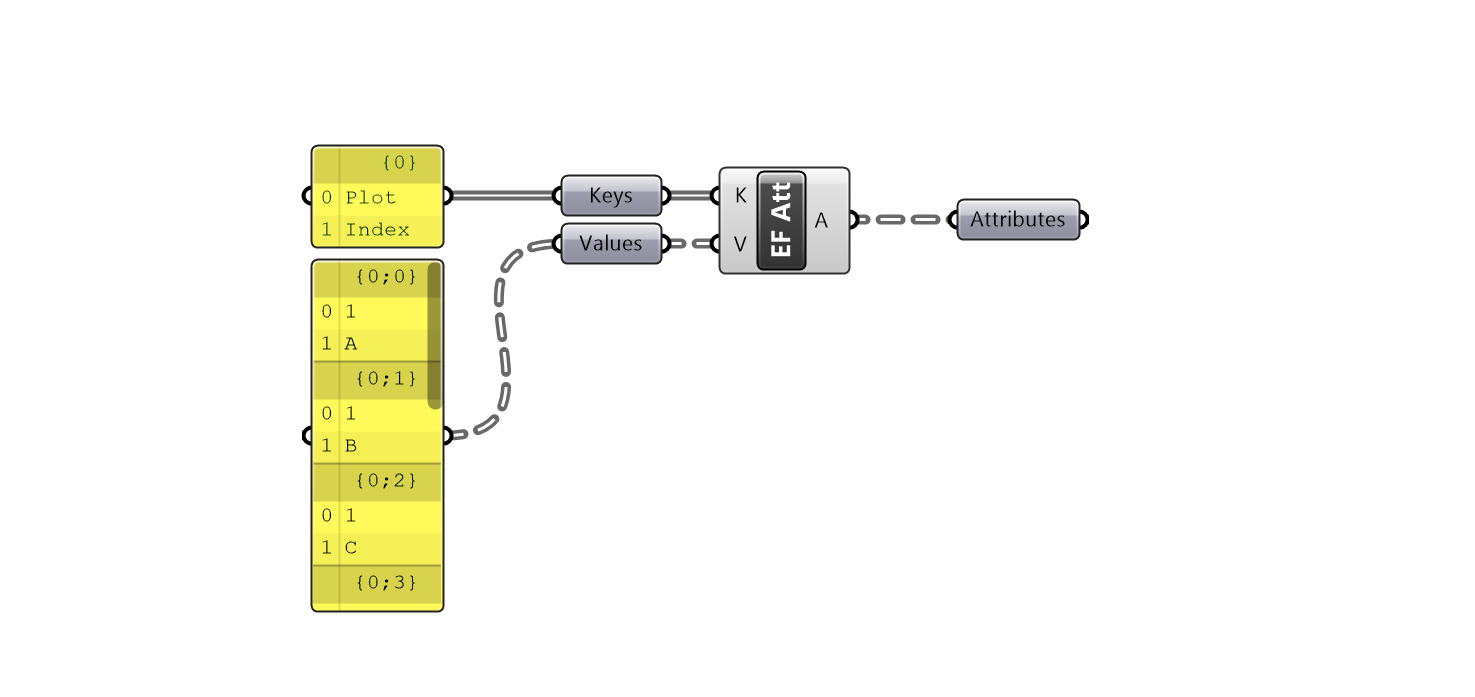 Define attributes in the current version of eleFront, with unconnected parameters hidden
Deconstruct Attributes
Deconstruct eleFront attributes would return Keys and Values by default, and gave the option of returning additional parameters such as BakeName, Name, Layer and Colour. Even though the component input expected referenced geometry, eleFront Attributes could also be provided as an input.
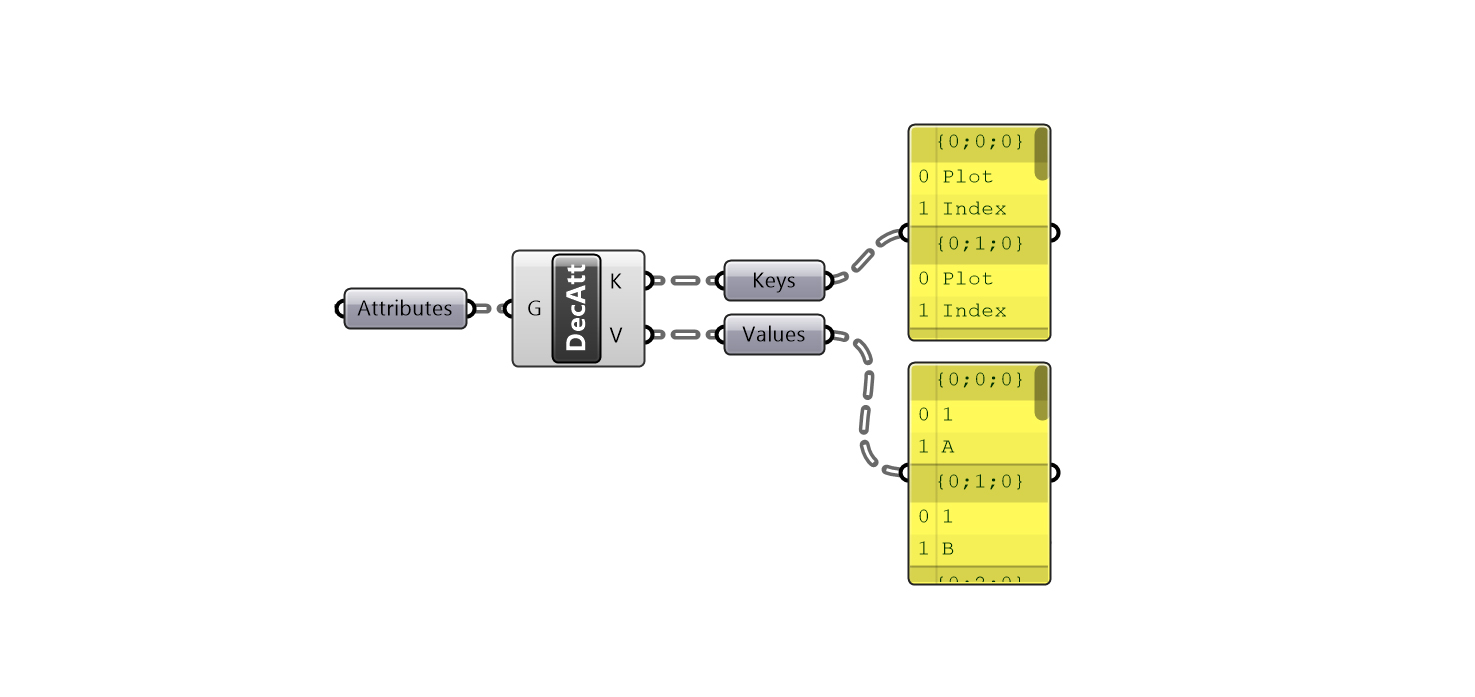 Deconstructing attributes in previous versions of eleFront
The eleFront Attributes component can again be used in the same way.
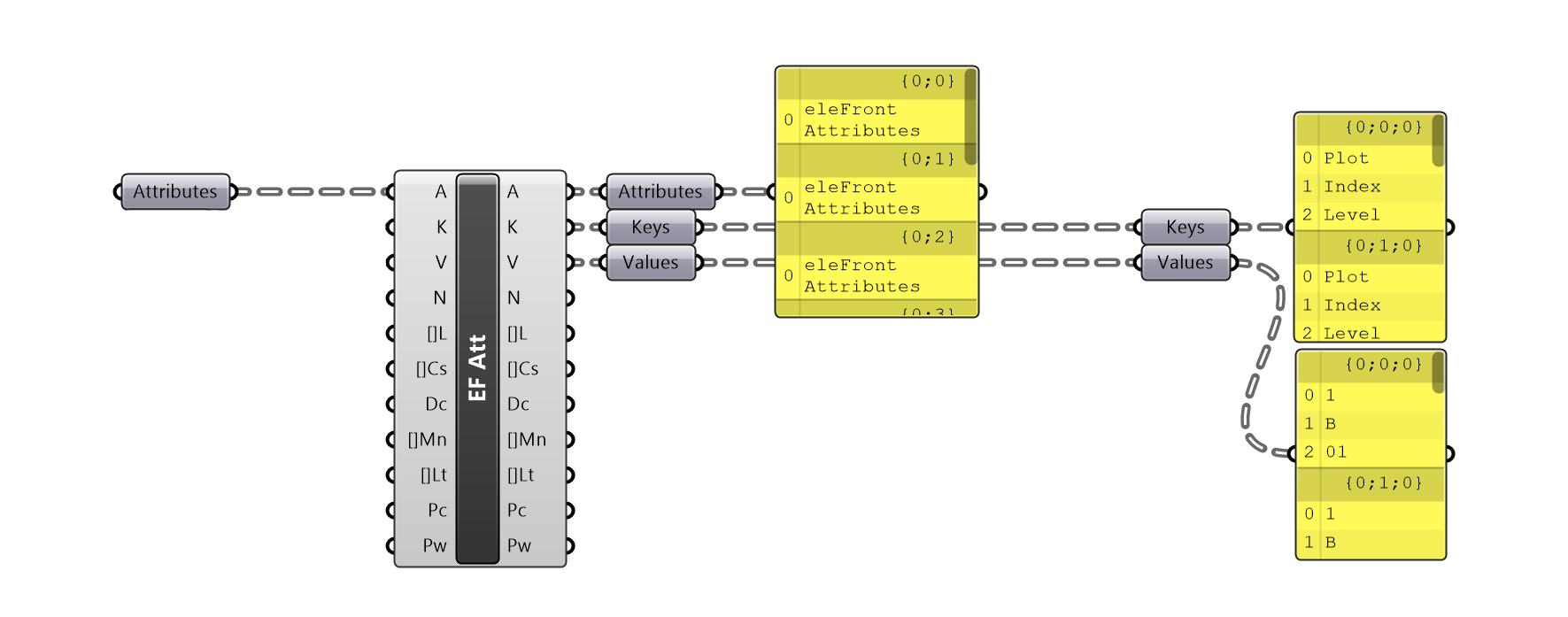 Deconstructing attributes in the current version of eleFront
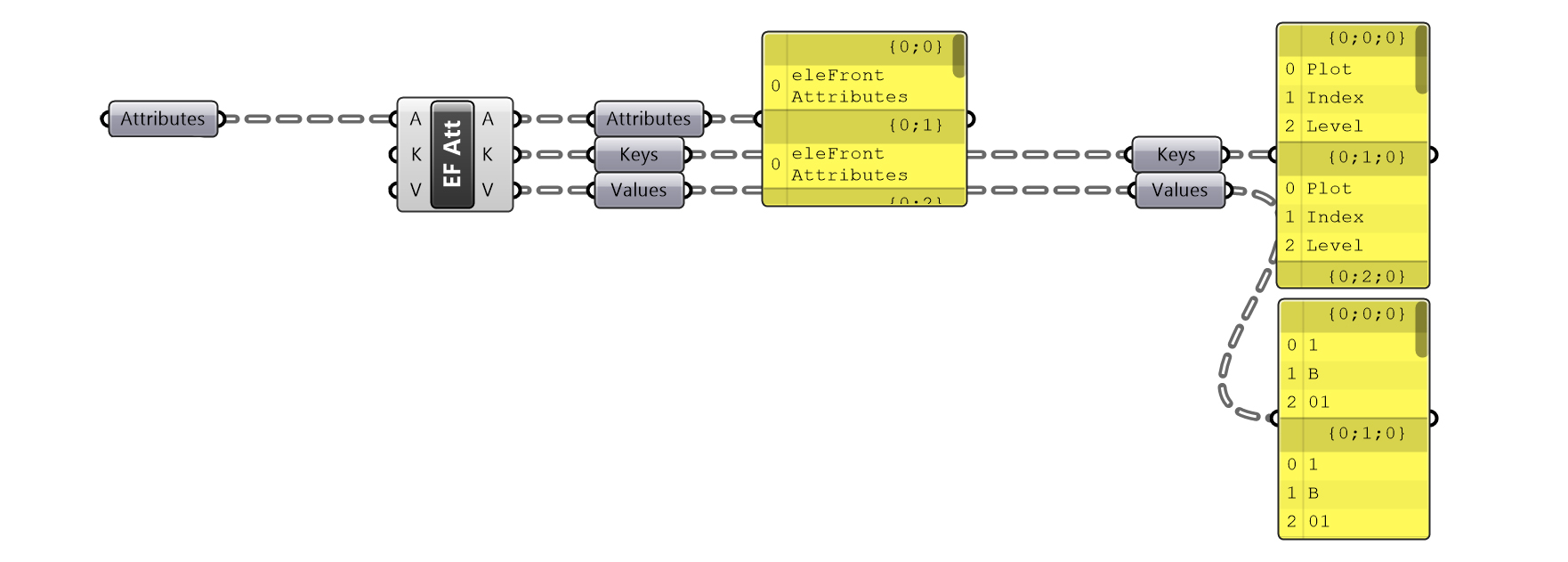 Deconstructing attributes in the current version of eleFront, with unconnected parameters hidden
Modify Attributes
Modify Attributes was used to overwrite or add to the attributes of referenced geometry or eleFront Attributes. In both cases, the output would always be eleFront Attributes.
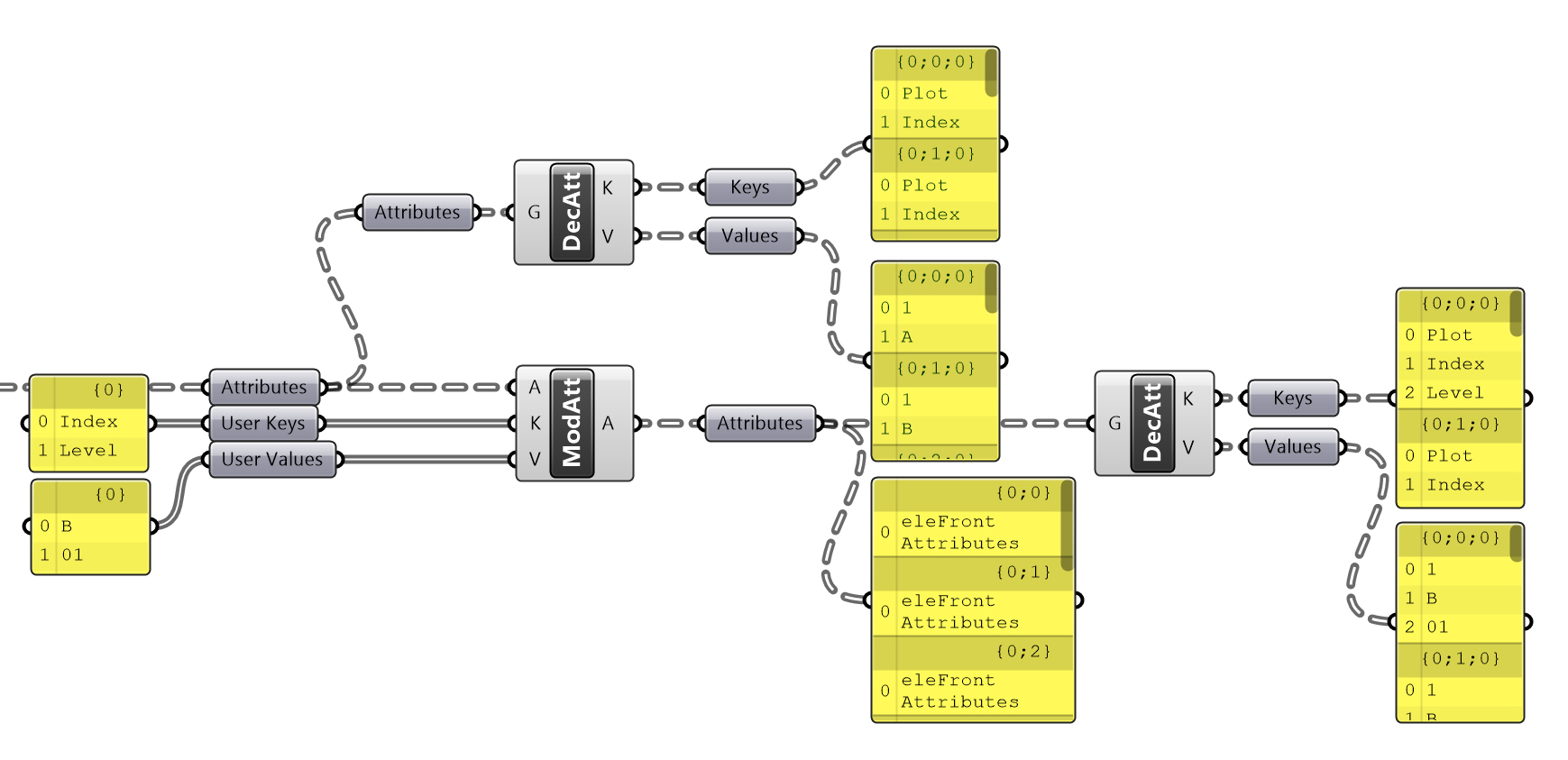 Modifying attributes in previous versions of eleFront
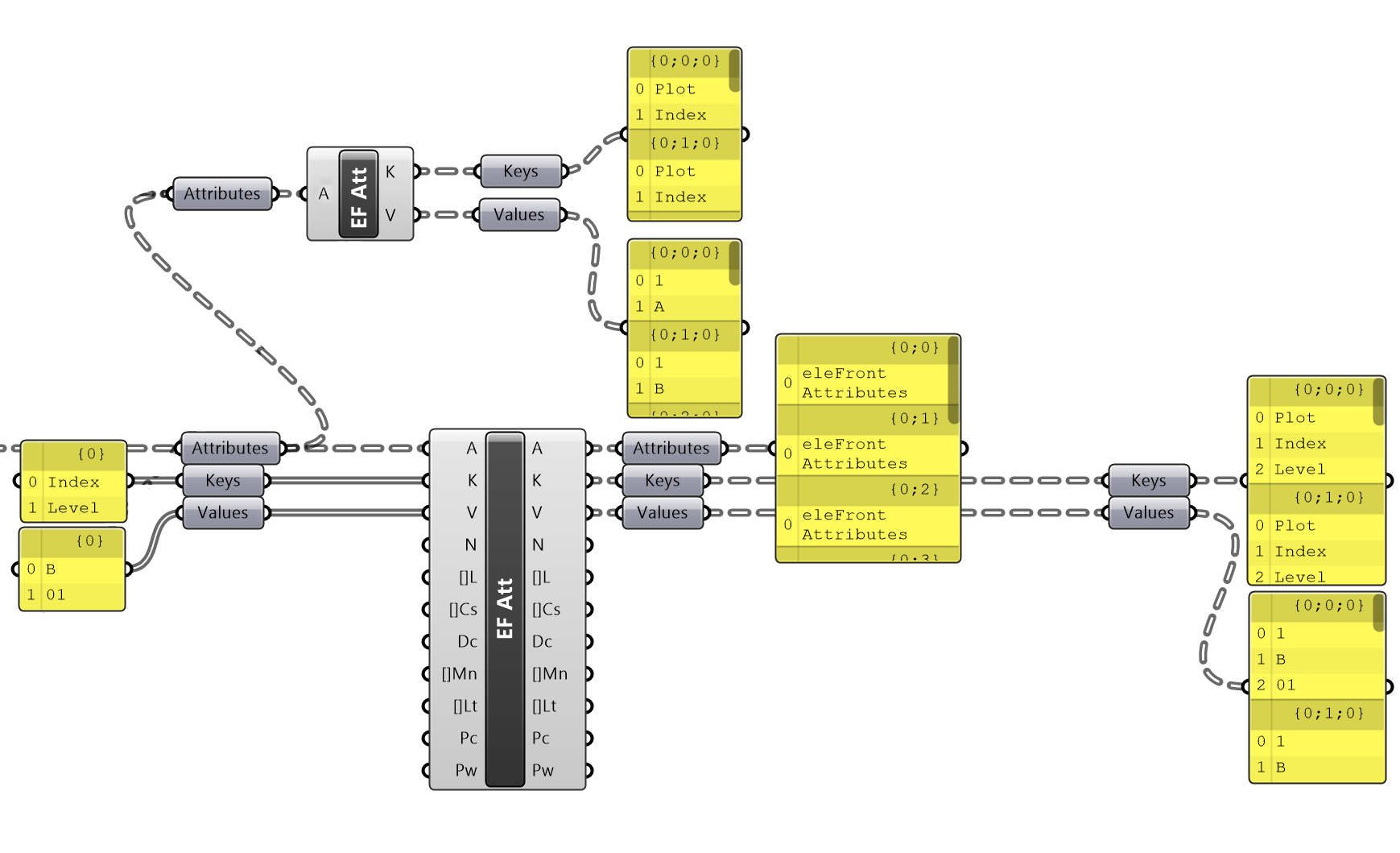
Modifying attributes in the current version of eleFront
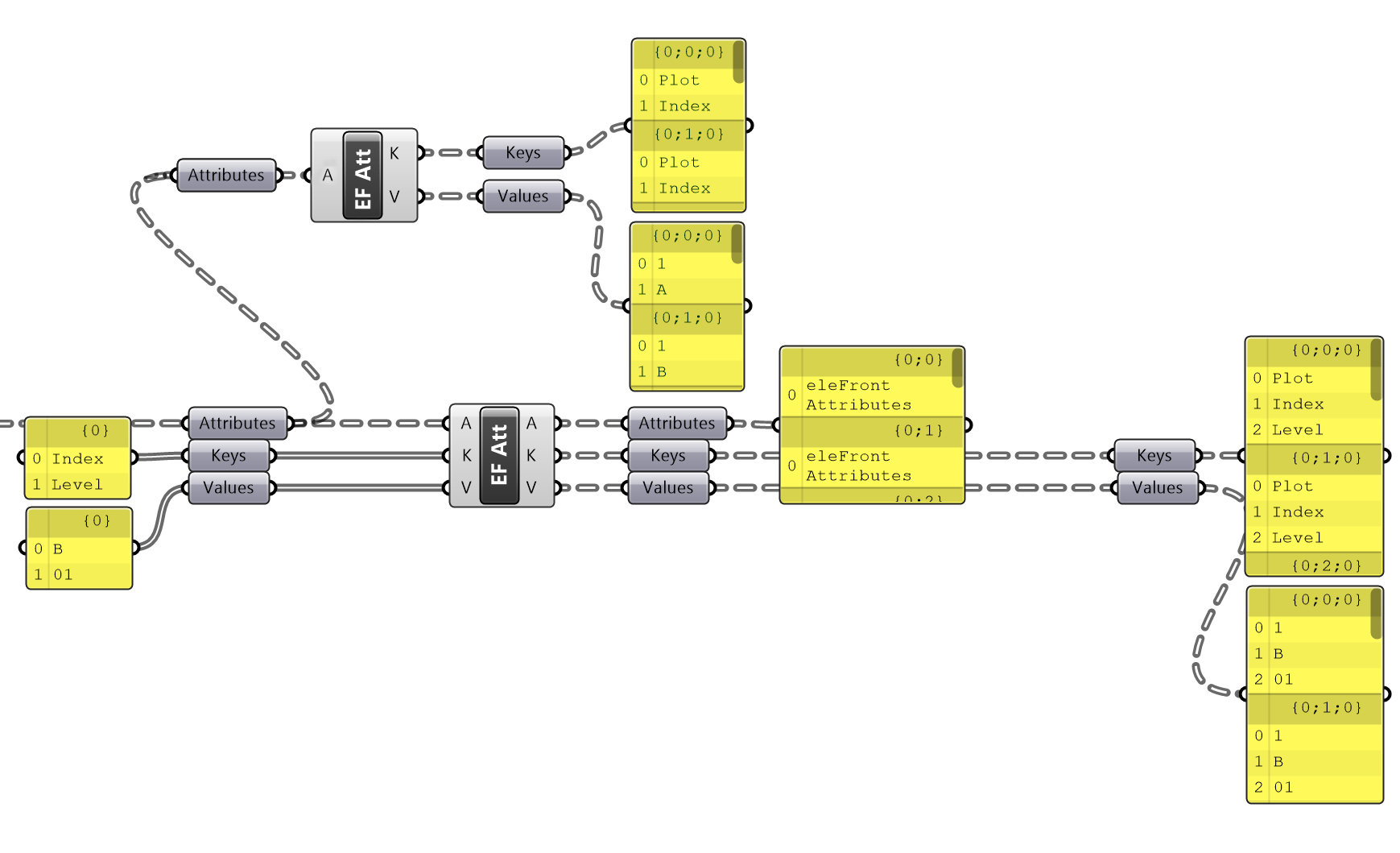 Modifying attributes in the current version of eleFront, with unconnected parameters hidden
The eleFront Attributes component performs the same task.
Canvas Management
Shortcuts for Data Descriptions have been integrated, so Autograph should no longer be used.
Blocks
Block workflows have seen some substantial changes. The changes are designed to make your life better - giving you more granular control over baking behaviors, and also making it easier to get information about blocks without having to explode them.
To get up to speed, we recommend reading the pages below.
Baking
Baking has more settings. These are explained in:
Bake Settings
Upgrading Legacy Scripts
If you want to upgrade your existing scripts, we recommend using the Package Manager to install the "Legacy" version of eleFront (the lower option) alongside the new version (v5.2 +).
This will allow you to have both versions side-by-side.
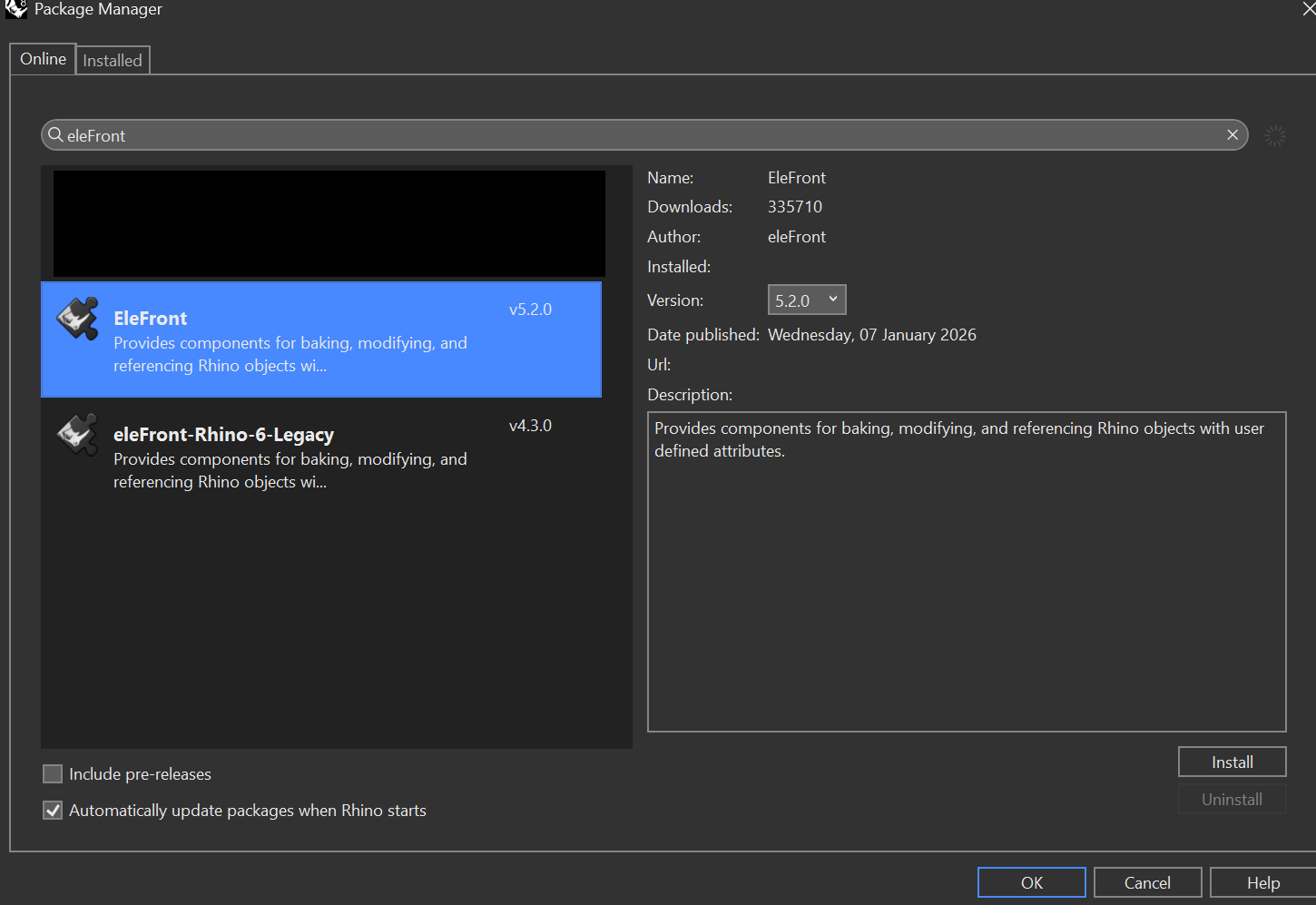
When you have the Legacy Version installed, your Legacy components will automatically appear with a "6" Overlay in the Icons. The Name displayed on the component may or may not change.

When you open one of your existing scripts, an option will become available under the Solution menu, called Upgrade Components...
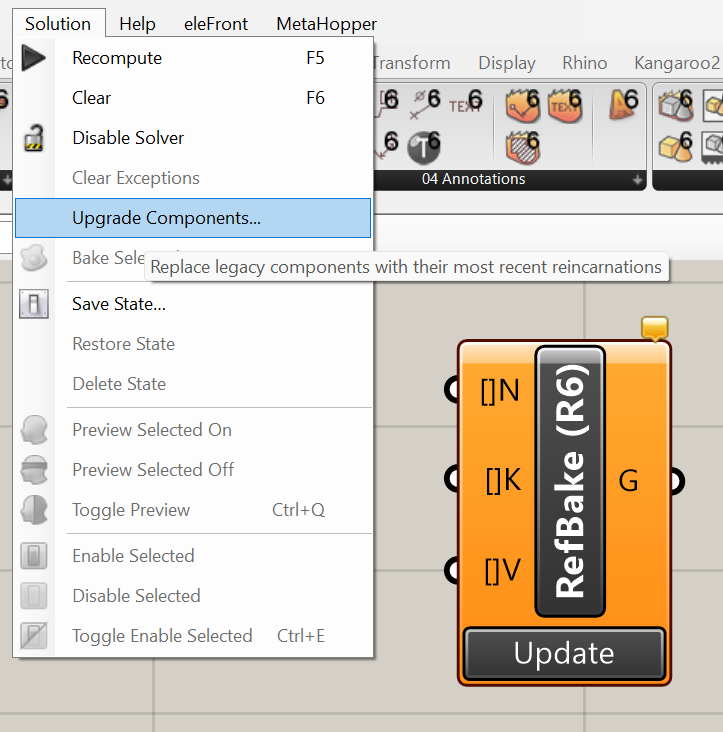
There will be a series of prompts asking you to save a backup file (which we recommend!), then show you which components it will attempt to update. This should cover a large number of cases. If you are using Blocks, it will upgrade the components, but as mentioned earlier, you should review the current Block workflows.